03. Getting Started with Autopano Video
To get started, you should:
- Download the Autopano Video Pro trial and install it.
- Download the VRND Course 7B - Course Assets.
- Unzip the course materials onto your hard disk and understand the layout.
- Drag and drop the raw footage clips into Autopano Video.
For this lesson, we’ll be using a piece of software called Autopano Video Pro. Go ahead and download the trial version of this software from www.kolor.com.
Also, be sure to download the course footage. Alternatively, you can use your own footage if you can get access to the raw clips.
Course Footage
*** Do not download an entire repository. Instead, browse the folders and download the subfolder that contains the footage you would like to use.
- 360 Media Repository
- 360 Media Repository from Germany
- 360 Media Repository from Greece
- 360 Media Repository from Iceland
- 360 Media Repository from India
- 360 Media Repository from Norway
- 360 Media Repository from Thailand
Depending on your needs, you may want to organize your footage into a logical folder structure like the one provided in the course materials. For this project, we’ll be using this folder structure:
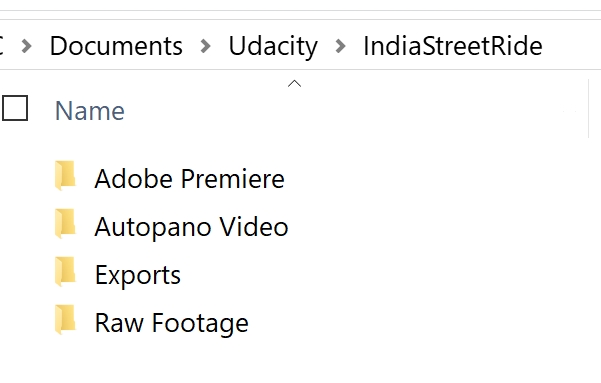
Optional folder structure for your files.
All of the raw footage lives in the “Raw Footage” folder. Each shot gets its own folder under “Raw Footage”. Autopano Video projects get saved into the “Autopano Video” folder. All of your rendered 360 videos live in the “Exports” folder.
After you’ve installed the Autopano Video Pro trial, load it up. You’ll first see a screen like this:

Limitations of the Autopano Video trial.
It’s important to note that your rendered videos will have a watermark and you won’t be able to export videos longer than thirty seconds.
After you click OK, you’ll see a screen like this:
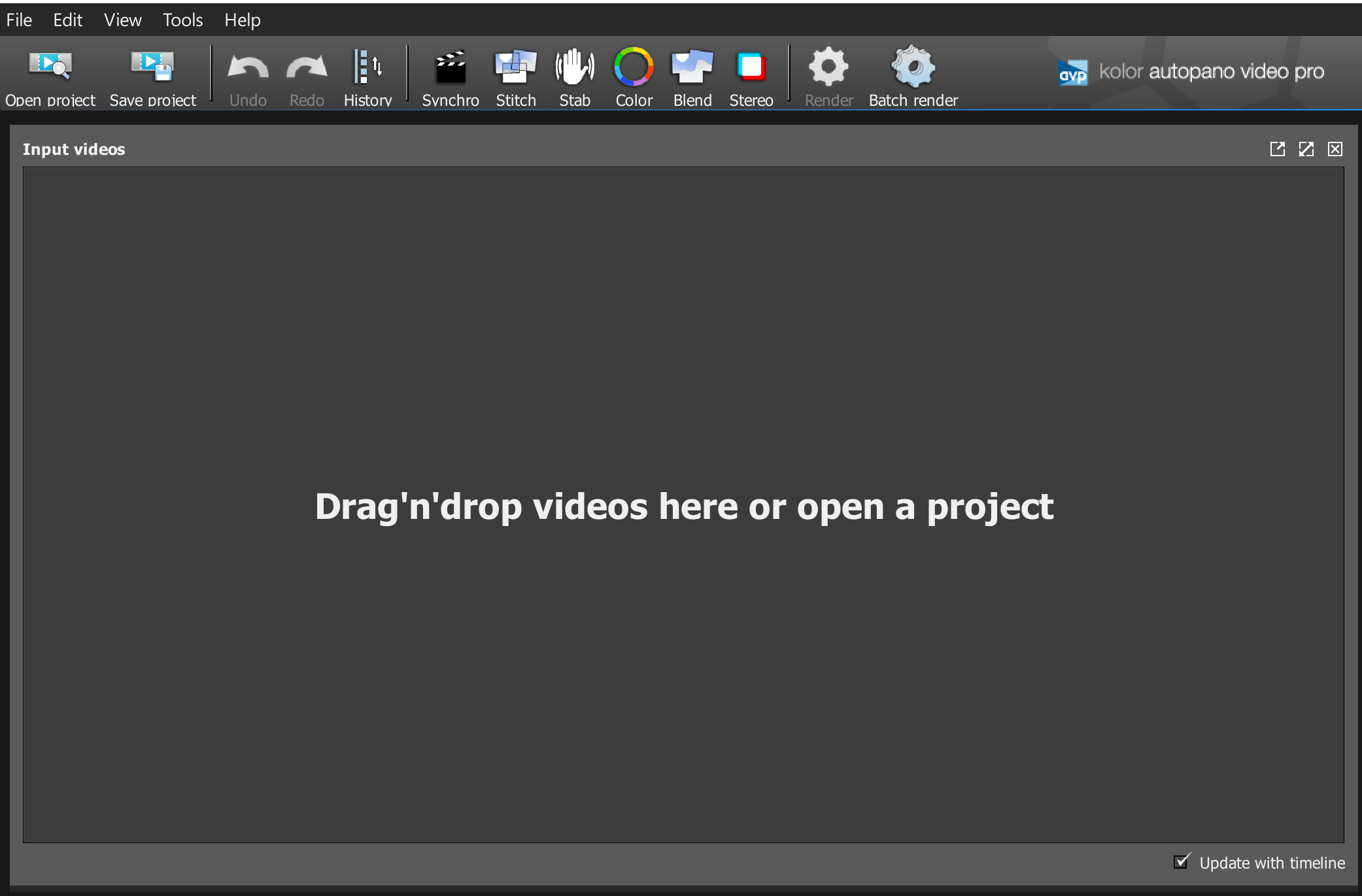
Drag and drop your raw footage from each camera into Autopano Video.
Drag and drop the raw video files from the course materials into the project.
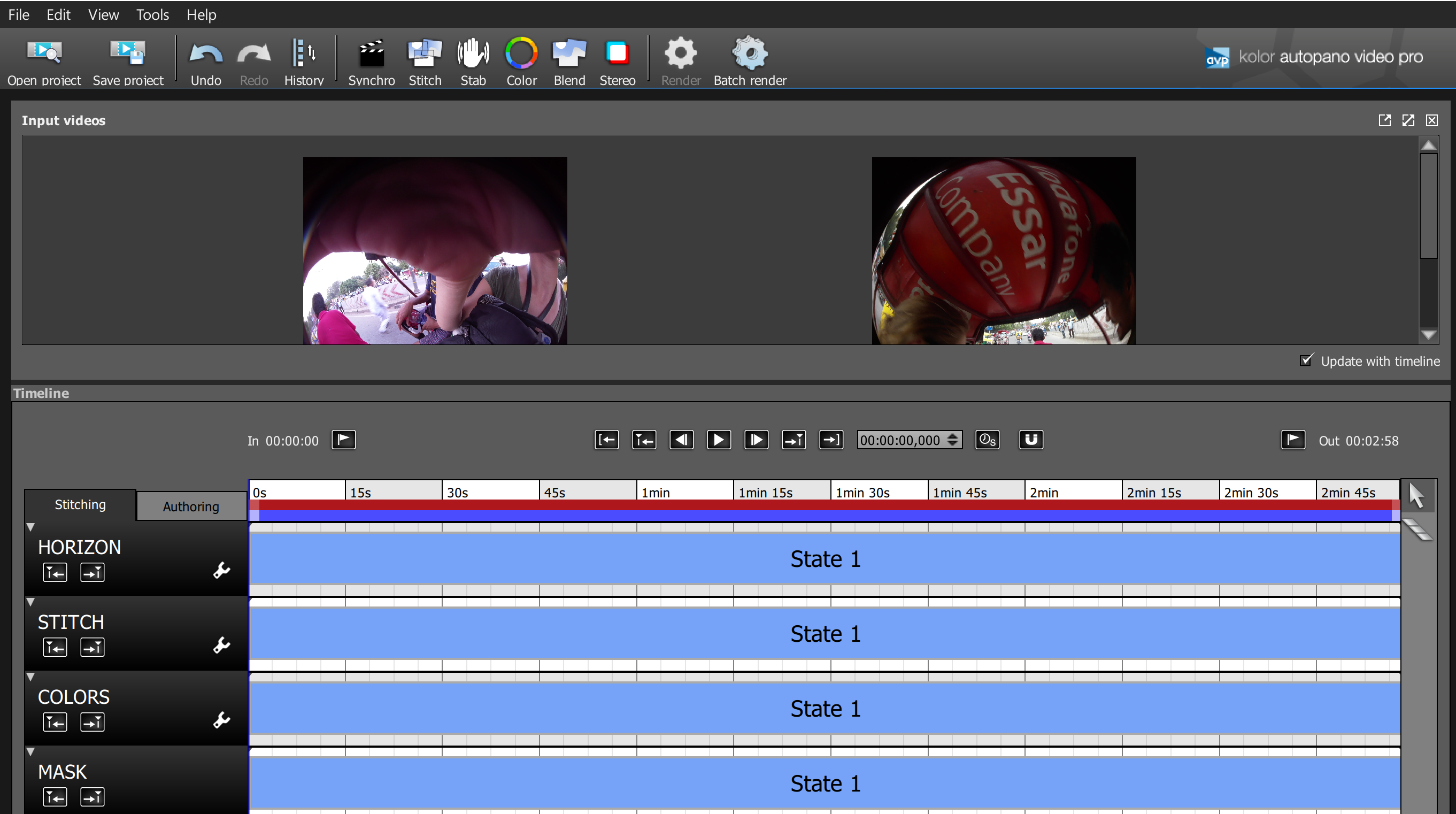
After dragging in the files, Autopano should look like this.